


An Easy Guide to STRN Sales Tax Registration in 2025:
If a business sells taxable goods on which sales tax (GST) is applicable then such business has to be registered for GST. Registration for GST is mandatory for all manufacturers, importers, exporters, distributors and wholesale dealers.
Income Tax Registration (NTN):
The first and most basic condition for STRN registration is that you are registered with Income Tax and must have NTN.
Unless a business registered with Income Tax, cannot apply for Sales Tax Registration.
NTN stands for National Tax Number, i.e. the number that an individual or business gets when they register with Income Tax.
While STRN is stand for Sales Tax Registration Number the unique identification number that have been issued after the registration is completed.
Remember this:
- NTN and STRN are two separate numbers.
- Both have different registrations procedures, purposes, laws and rules.
- For STRN business is mandatory which sells taxable goods.
An Easy Guide to STRN Sales Tax Registration in 2025: Apply Online on IRIS portal
Once the NTN is generated, you will then log in to FBR’s IRIS portal and select forms under the registration tab. There are various forms available, click 14(1) (Form of Registration filed voluntarily through Simplified) (Sales Tax)
This entire process is online all forms; attachments can be completed online.
Balance Sheet:
The first tab that is shown in the STRN registration form is the balance sheet. In this form, you have to show the complete financial position of your business, which includes:
- All Business Assets
- All Liabilities
- Fixed Assets
- All Bank Balances
- Cash in Hand
Here is an important thing to remember:
- This balance sheet will only show the assets of the business
- Personal assets will not be included
- This balance sheet actually shows the total value of your business.

Business:
The next step is to enter the details of your business. First, enter the name of the business, then enter the date of commencement of the business. Then select the capacity in which you are doing the business, i.e. whether you are the owner, leased, franchised, rented.
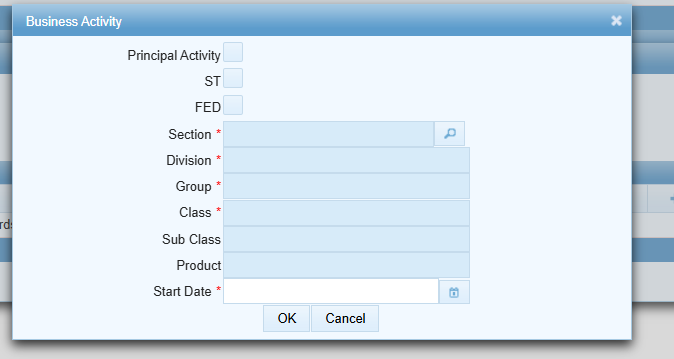
After this, you have to select the business activity. If this is your principal activity, then you must tick it. Along with this, the sales tax option, which is called ST in short, must be selected. If this option is not selected, your registration will not be complete. This means that the business you have selected is applicable for sales tax.

Business Activity
In the next step, you have to select the section, where you will select your business activity. There are several options here. For example, if you work in meat processing, your section will be Manufacturing, your division will be Food Manufacturing, and your product class will be Processing. All these options have to be selected correctly and click OK, and the status should be kept as Start.
Bank Account
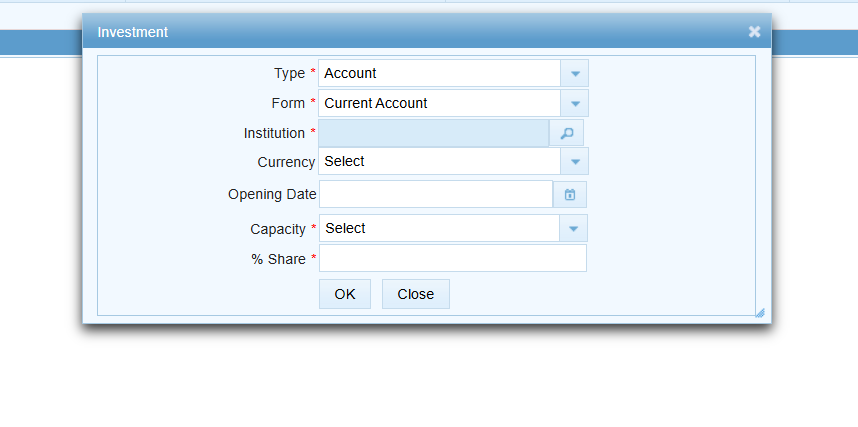
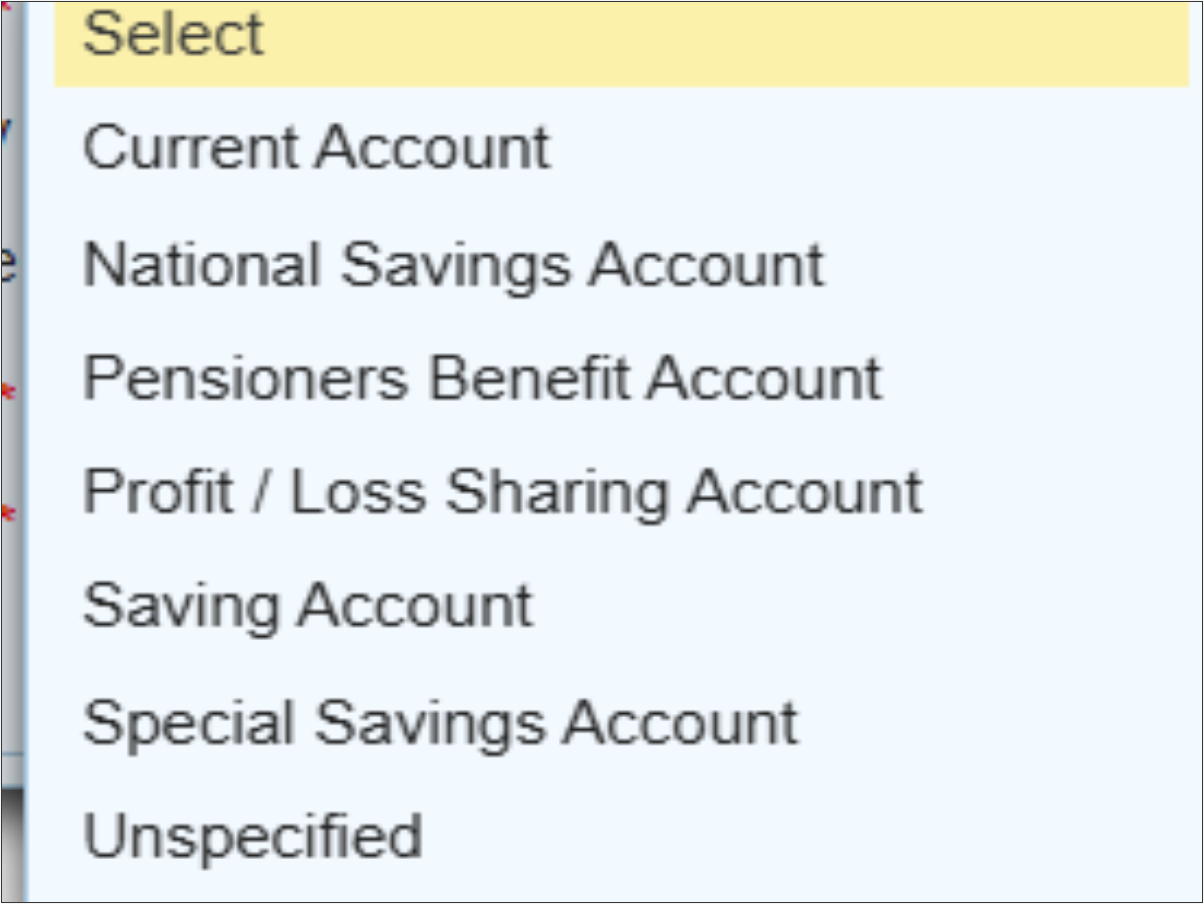
In this tab, you are required to enter bank account details. First, select the Account Type, under which multiple options are available, Account, Annuity, Bond, Certificate, Debenture, Deposit, Fund, and Instrument usually Account should be select.
Under the Account section, you have to choose type of account whether it is Current, National Savings, Pensioners’ Benefit, Profit and Loss Sharing, Saving.Additionally, you must also provide the currency, account opening date, in capacity you have to select either as owner or banami/lease, occupied and finally the share.
Property
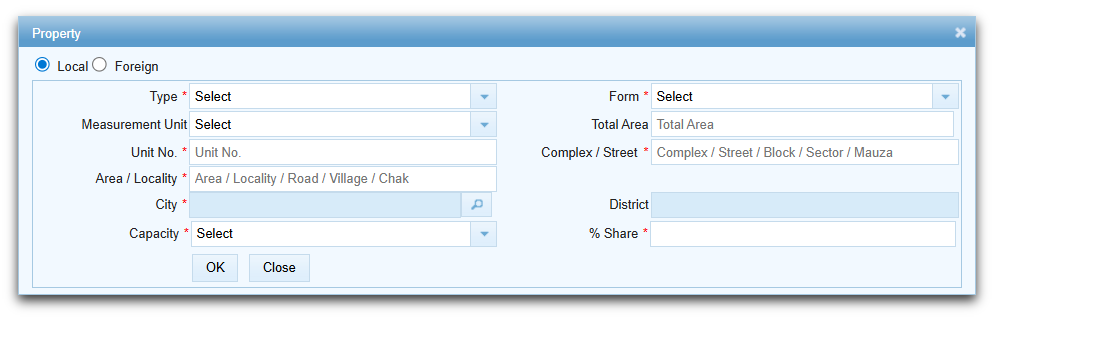
In the property type, first select whether the business property is:
Agricultural, Commercial, Industrial or Residential
The full address of the property must also be provided.
Street address, Unit number, City and district
Next, it is also necessary to indicate:
Property is owned or leased
Ownership share 25%, 50% or 100% etc.
Utility
To add a utility, you first add the property, after adding the property this option will be enabled. Once the property is added, click on it, a plus sign (+) will appear just below the Action Tab.
Click on this plus (+) to add a new utility connection, for which you will need to provide the following information:
- Type of utility (commercial, industrial, residential)
- Electricity, gas, water, internet or telephone
- Consumer number
- Name of service provider
- Connection date
Temporary STRN (Temporary Registration)
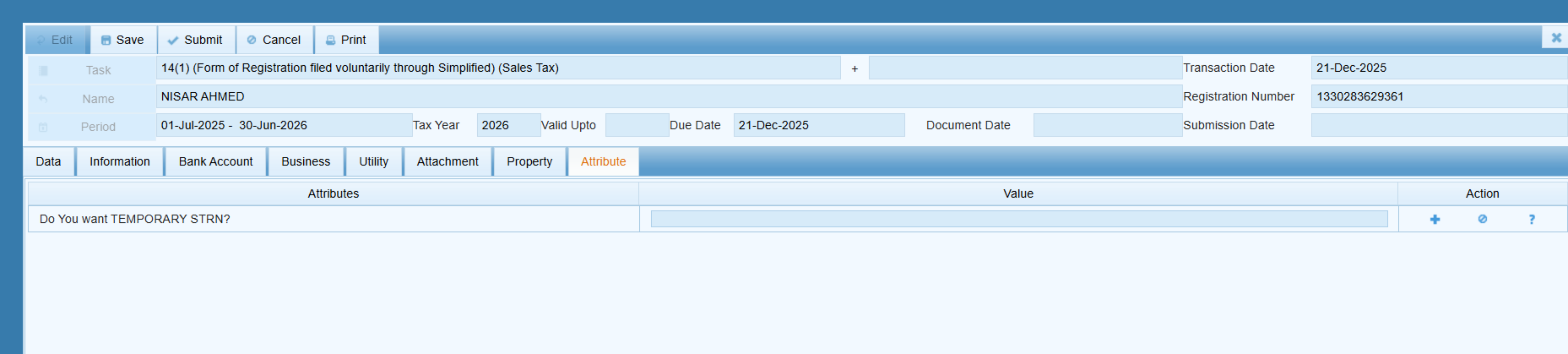
The last type is Attribute. In Attribute, you have to indicate whether the STRN you want to obtain is Temporary or not. If it is temporary, you have to select Yes.
If temporary registration is required, select Yes, otherwise select No.
This Temporary Registration is only for Manufacturers. This facility is provided to those manufacturers who want to import machinery from abroad and install it in Pakistan. For this purpose, complete list of machinery to be imported along Bill of Lading or GD (Goods Declaration) has to provide. The Temporary Registration is valid for 60 days.
 Biometric Verification
 Biometric Verification
Finally, it is mandatory to get Biometric Verification done from NADRA e-Sahulat Centre.
In the case of an Individual, the concerned individual himself goes to the NADRA e-Sahulat Centre and gets the biometric verification.
In the case of a Company or AOP, the Principal Officer of the company or his authorized person can perform biometric verification.
This biometric verification must be completed within one month. Until the biometric verification is completed, the Sales Tax Registration is not considered complete, neither can you file the return nor are you allotted STRN.
In the case of a Manufacturer, the concerned field officer of FBR visits the factory. After this visit and verification, your Final Registration is completed.
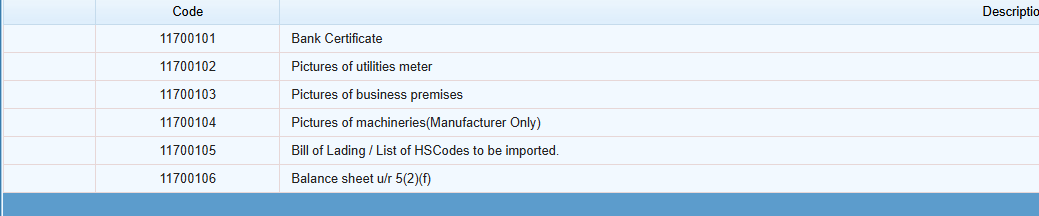
Attachment
The following documents must be attached with the application:
- Bank Statement / Bank Maintenance Certificate
- Photographs of Electricity or Gas Meter
- GPS-tagged photographs of the business premises
- In case of manufacturer, also the GPS-tagged photographs of machinery and
industrial electricity or gas meter installed - Bill of Lading and HS Code in case of Importer
Balance Sheet
How to verify sales tax registration (STRN)
After completing all these steps, your registration is complete and you are allotted a STRN. Now to check whether the business is registered for Sales Tax or not, you will check Taxpayer Profile Inquiry. If the business has STRN then “Yes” and the effective date is also mentioned. Next to the “Registered for Sales Tax”.
To check, you can use the FBR Tax Asaan App or the IRIS portal and click ‘’Online Verifications’’. If you need any assistance or consultancy services please reach out via our social media accounts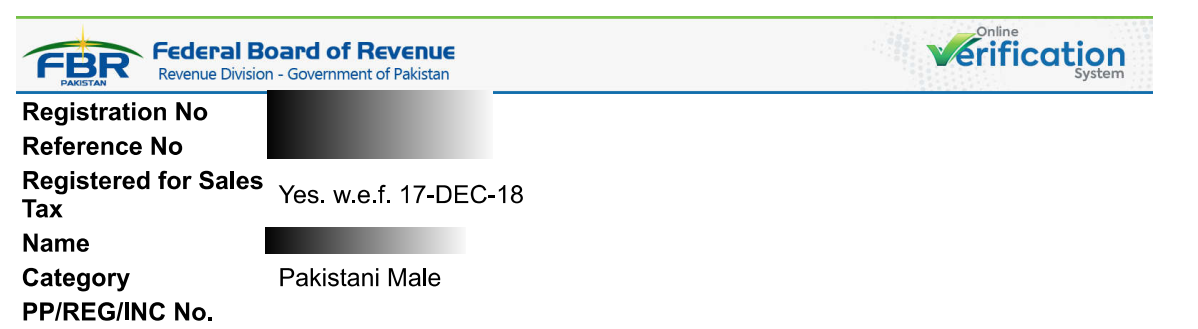 .
.
